%20(1).jpg)
WiFi & App SetupUpdated 3 months ago
To use your Flappie, you'll connect it to your WiFi through the Flappie app. The app sends the WiFi credentials to your Flappie via Bluetooth.
Step 1: Download the app
The Flappie app is free for iOS and Android:
- iPhone / iPad: Search the App Store for "Flappie" or download it here
- Android: Search the Google Play Store for "Flappie" or download it here
Step 2: Create an account
Open the app. On the welcome screen you'll see two options: Log in with email (if you already have an account) or Create an account for a new one.
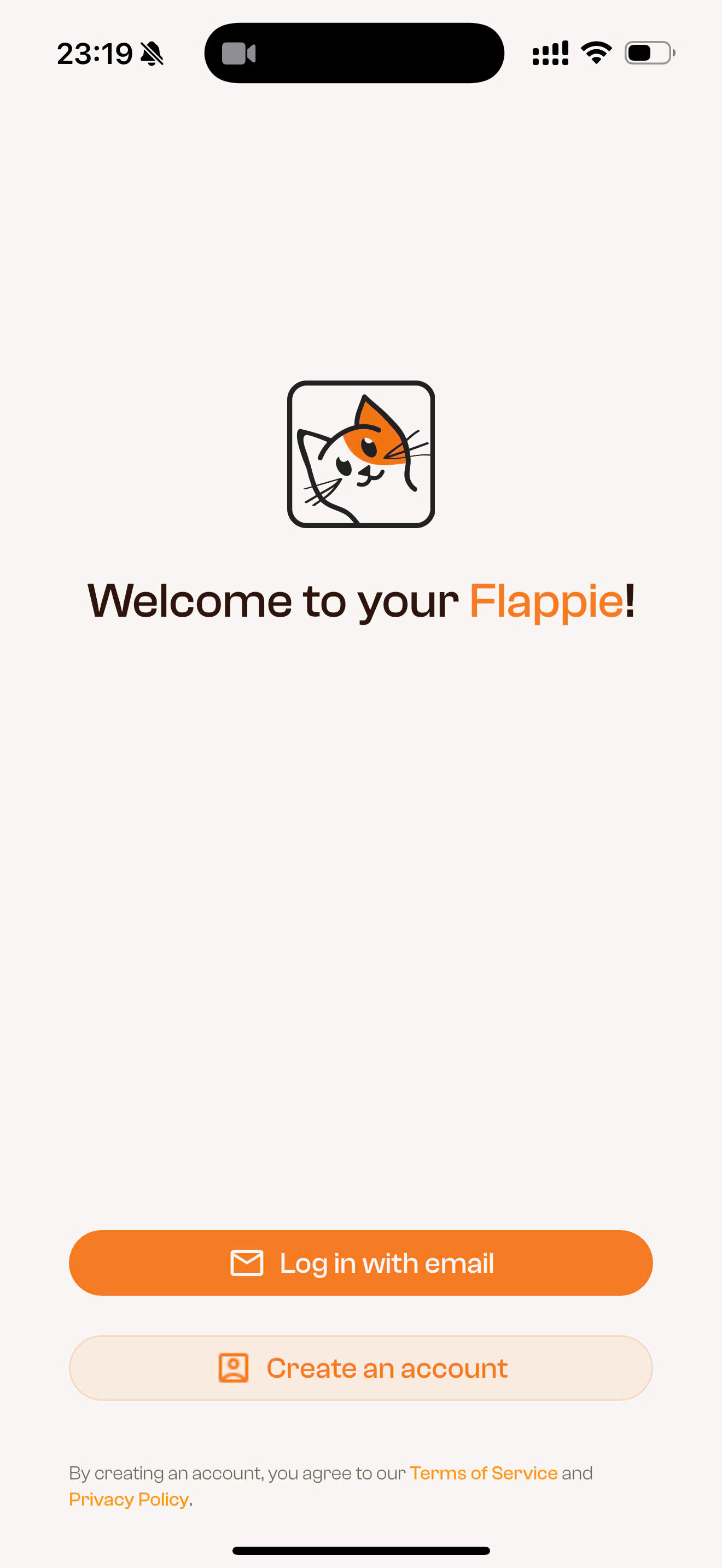
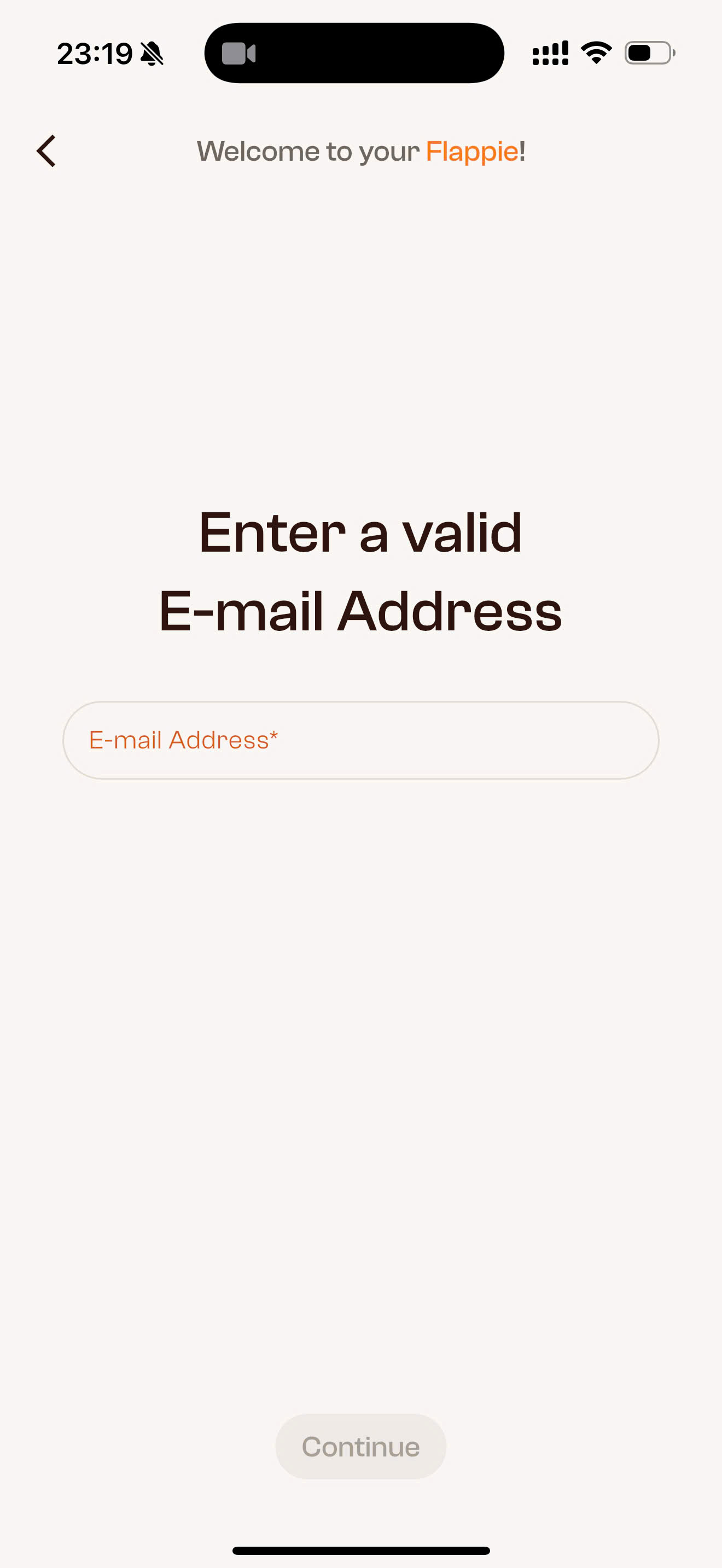
Tap Create an account and enter your email address.
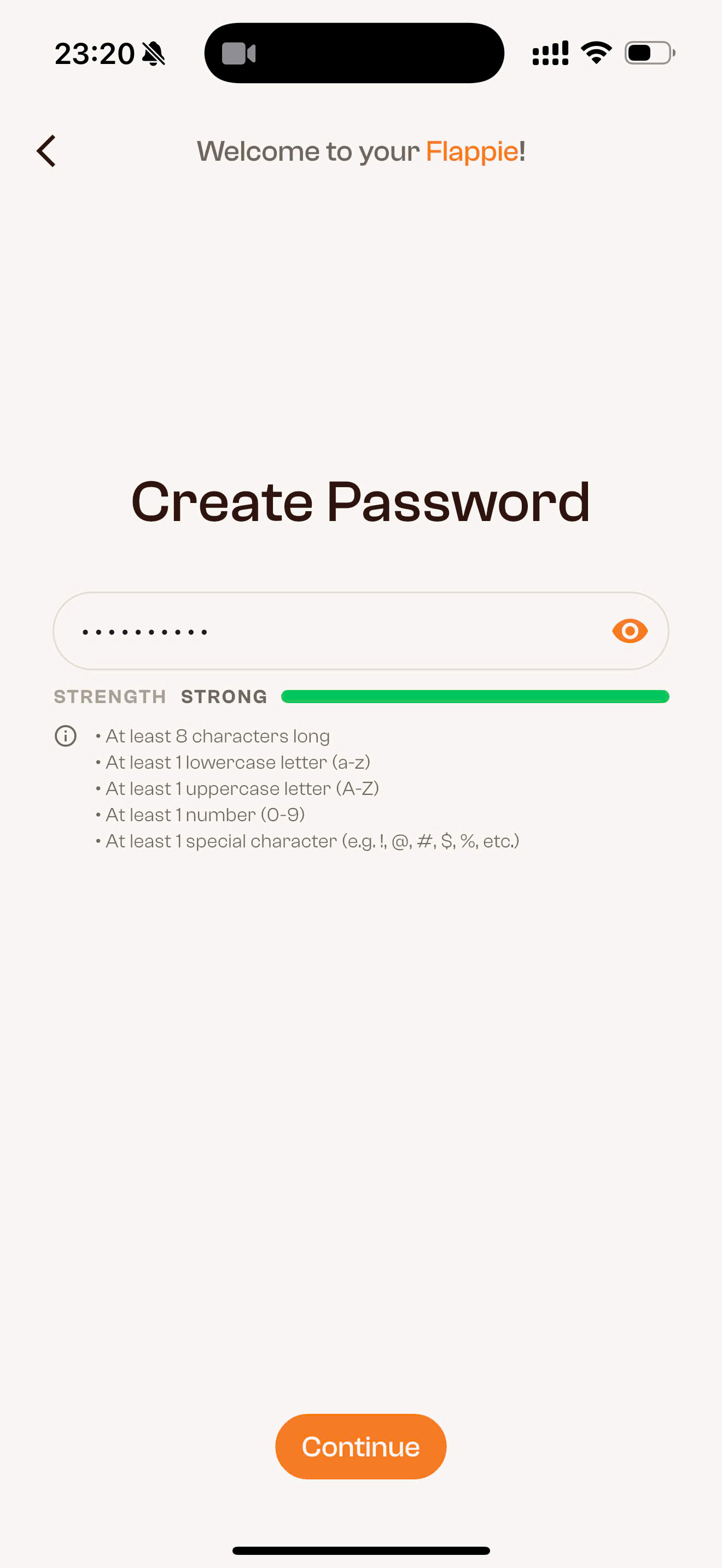
Choose a strong password. The app shows you the password strength. It needs to be at least 8 characters long and include uppercase and lowercase letters, a number, and a special character.
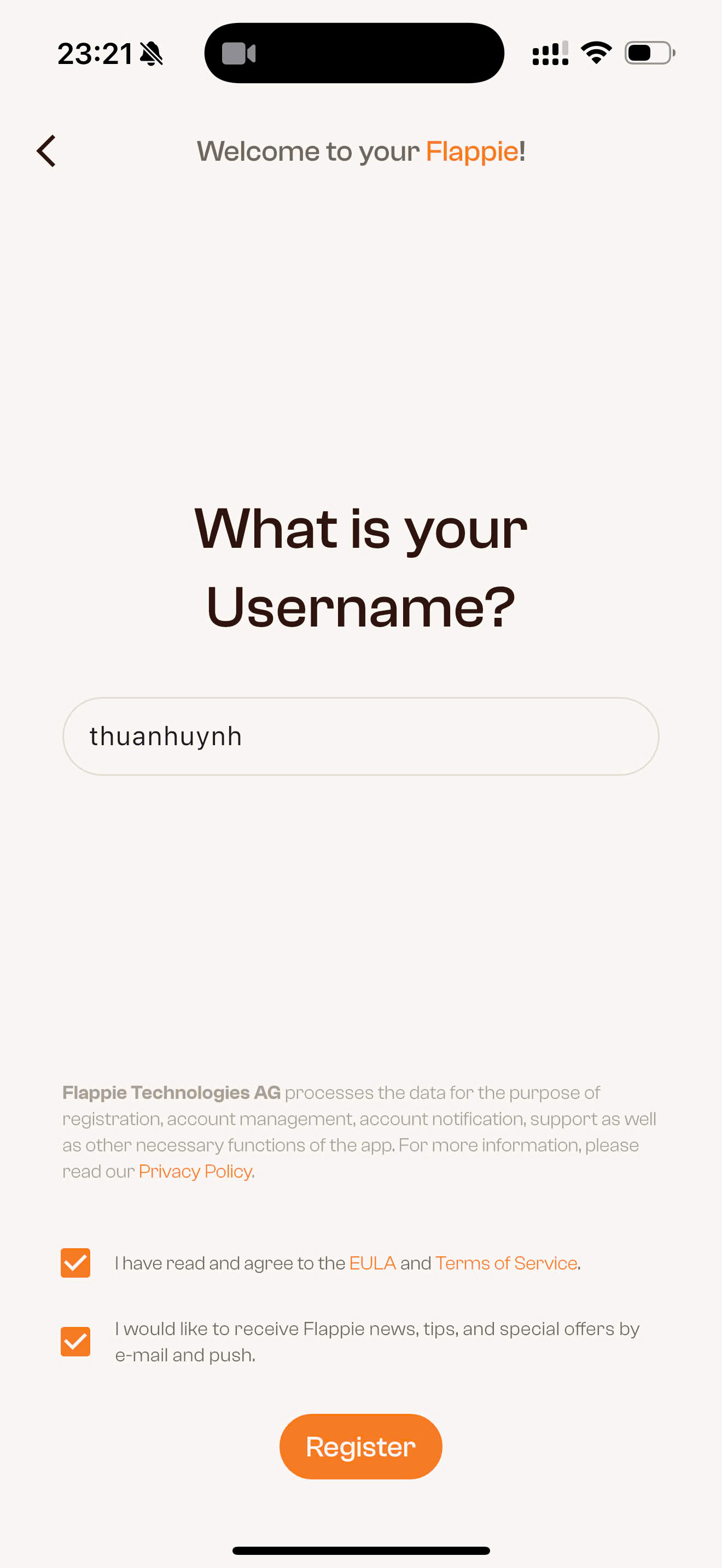
Choose a username, agree to the terms of service, and tap Register.
Step 3: Confirm your email
After registering, we'll send you a confirmation email. Open the email and click the activation link to activate your account.
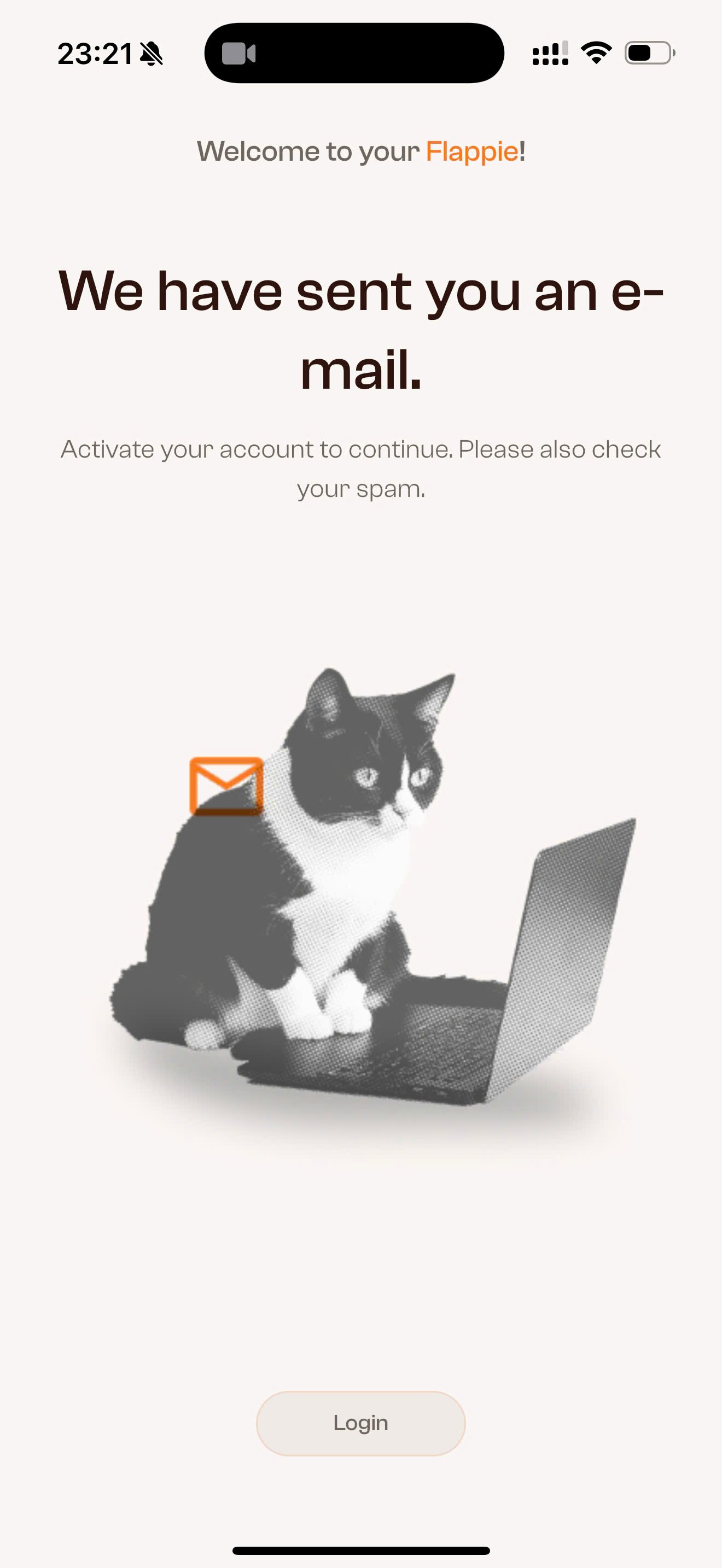
Tip: Check your spam folder if the email doesn't arrive right away.
Step 4: Log in
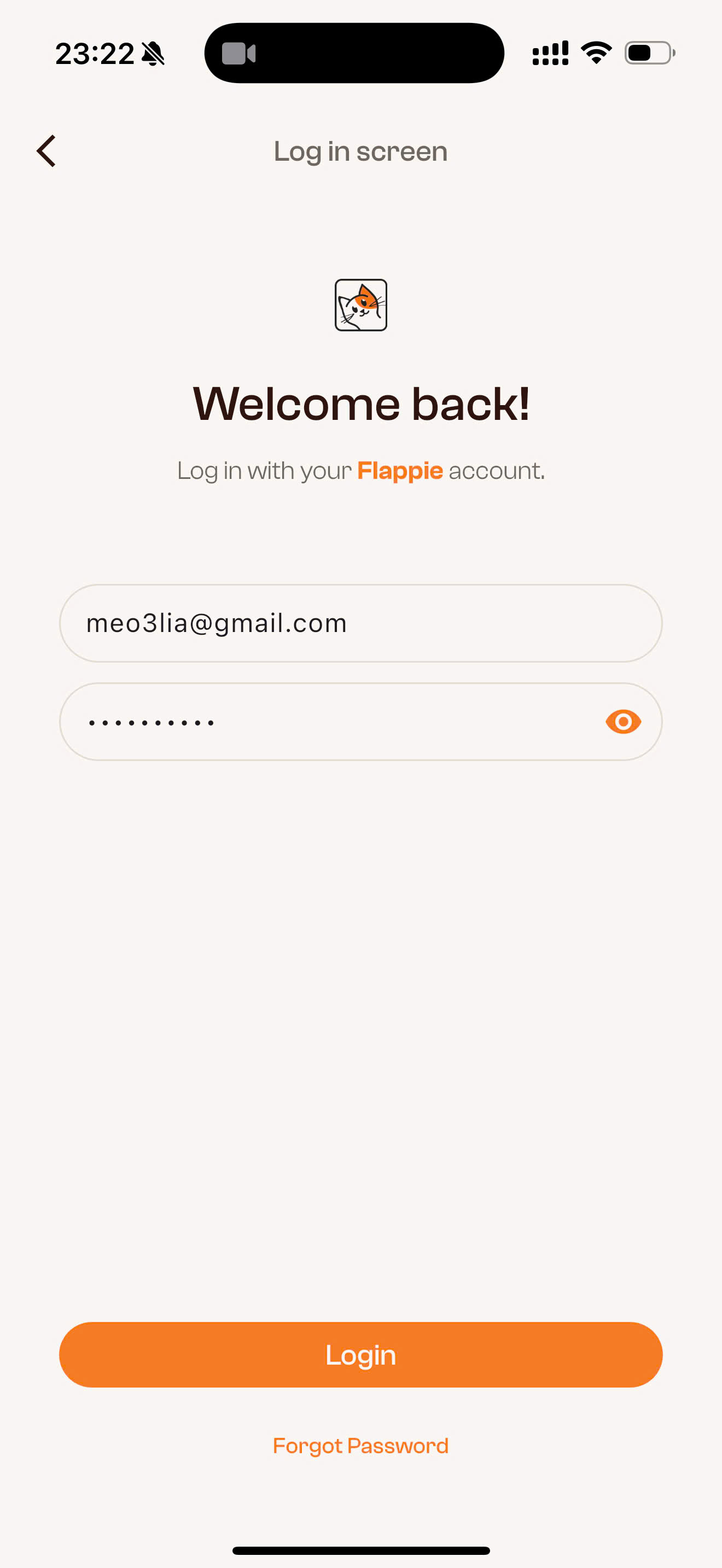
Once your account is activated, open the app and tap Log in with email. Enter your email address and password, then tap Login.
Step 5: Prepare your WiFi
Before you connect your Flappie, check the following:
- Your WiFi password – you'll enter it in the app in a moment
- 2.4 GHz WiFi – Flappie does not support 5 GHz. If your router broadcasts both frequencies, select the 2.4 GHz network (often recognisable by a "2.4G" suffix in the name)
- WPA2 encryption – WPA3 is not currently supported. If your router is set to "WPA3 only", switch it to WPA2 or mixed mode (WPA2/WPA3)
- Bluetooth enabled on your phone
Step 6: Connect Flappie to WiFi
Make sure your Flappie is plugged in. Open the Flappie app and follow the setup wizard – it guides you through the connection step by step:
- The app searches for your Flappie via Bluetooth
- Select your 2.4 GHz WiFi network
- Enter your WiFi password
- The app transmits the credentials to your Flappie via Bluetooth
- Your Flappie connects to WiFi
The entire process usually takes just a few minutes.
Common setup issues
My phone can't find the Flappie via Bluetooth
Make sure Bluetooth is enabled on your phone and you're standing near your Flappie. Restart the app and try again.
"Error sending WiFi data"
Check that you've selected the right network (2.4 GHz, not 5 GHz) and that the password is correct. Watch out for uppercase and lowercase letters.
Flappie won't connect to WiFi
Check that your router uses WPA2 (not WPA3 only). Also make sure the WiFi signal is strong enough where your Flappie is installed. If your Flappie is far from the router, a WiFi repeater can help.
My WiFi doesn't show a separate 2.4 GHz network name
Some routers combine 2.4 GHz and 5 GHz under one name. You can separate the two frequencies in your router settings or create a dedicated 2.4 GHz network. Check your router's manual or contact your internet provider.
For more detailed help with WiFi issues, check out our troubleshooting article:
→ WiFi won't connect
Still stuck?
Write to us at [email protected] or use the chat in the bottom right corner.