%20(1).jpg)
Connect Flappie to Wi-Fi and the appUpdated 3 months ago
After installation, you connect your Flappie to your smartphone via the app. The whole process takes about 5 minutes. Here's every step in detail.
What you need
- Your Flappie — installed and plugged into power
- The Flappie app on your smartphone (iOS / Android)
- 2.4 GHz WiFi (not 5 GHz, not WPA3)
- Bluetooth enabled on your smartphone
Step 1: Open the app and start setup
Open the Flappie app and tap "Set up Flappie" → "Continue".
Step 2: Share your location
The app will ask for your location. This is used for:
- The correct timezone (so schedules work properly)
- Regional prey statistics (anonymised, approx. 5 km radius)
- Location label on videos you share on FlappieTV (optional)
Confirm your location on the map. You can also adjust it manually if the automatic detection isn't quite right.
Step 3: Connect WiFi
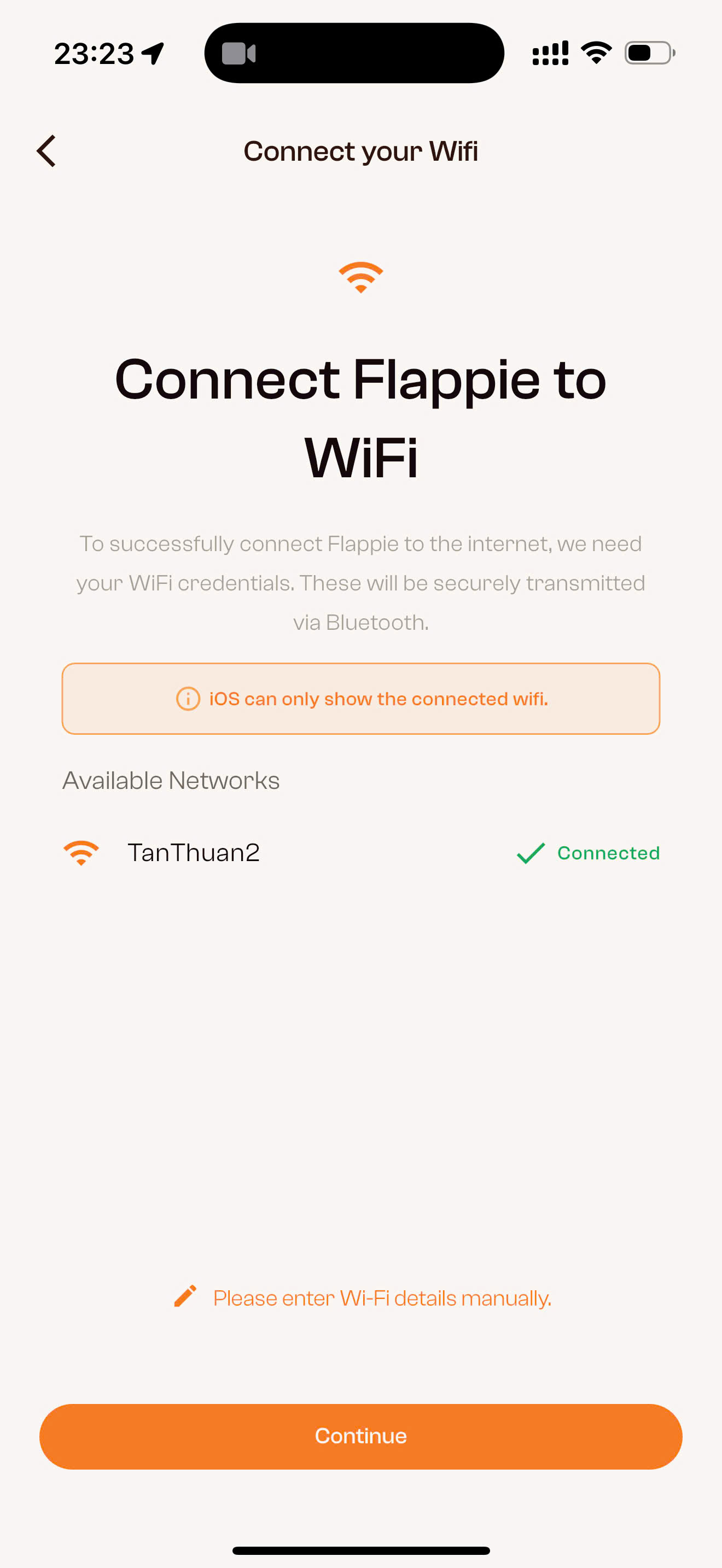
Select your WiFi network from the list and enter your password. The credentials are securely transmitted to Flappie via Bluetooth.
Important:
- Flappie only supports 2.4 GHz networks (not 5 GHz)
- Security standard: WPA2 (not WPA3)
- If your network doesn't appear in the list, tap "Please enter Wi-Fi details manually"
Step 4: Enable Bluetooth
The app needs Bluetooth to send the WiFi credentials to your Flappie. Allow access when your phone asks. After pairing, Bluetooth is no longer needed.
Step 5: Connect Flappie
Now your Flappie gets paired with the app — the app guides you through 4 steps:
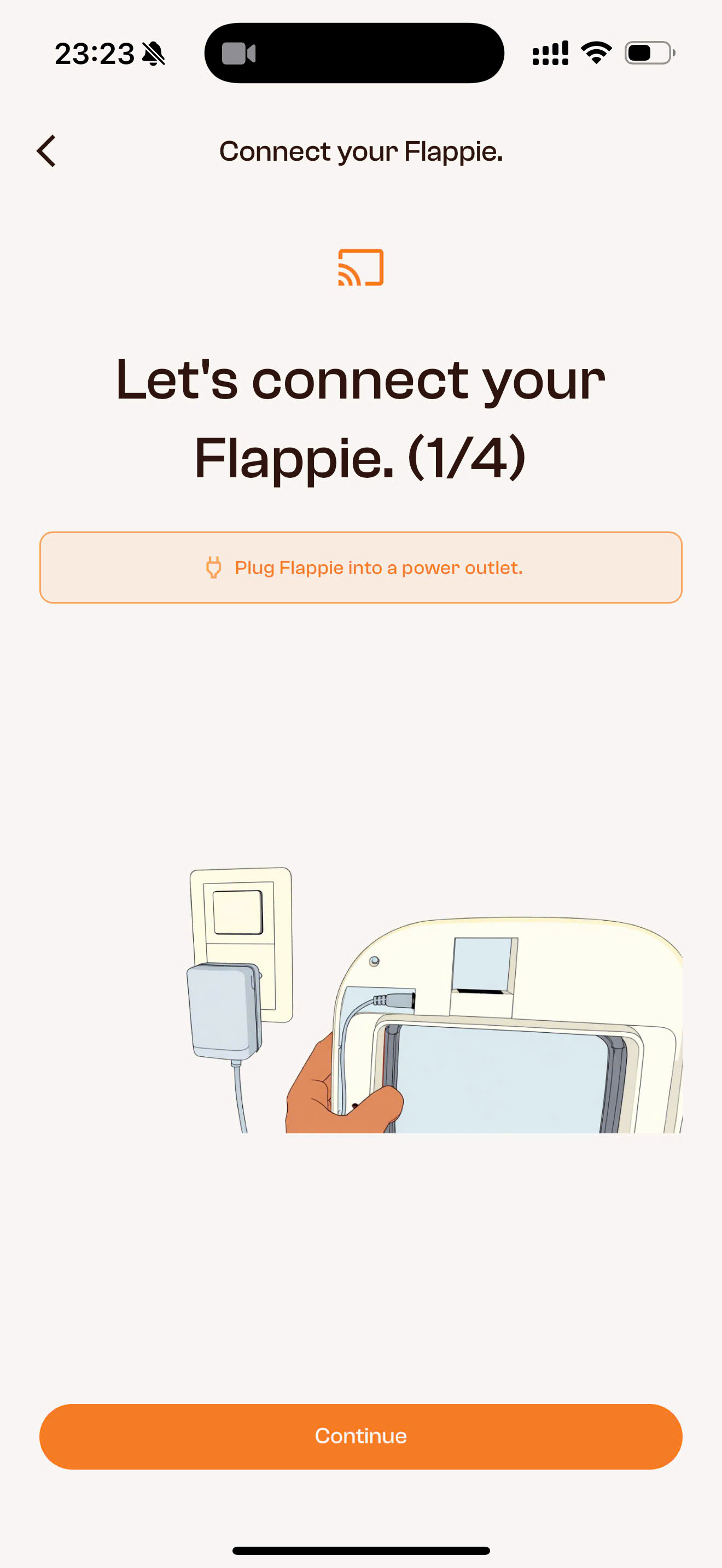
5.1 — Plug in power
Connect the power cable if you haven't already.
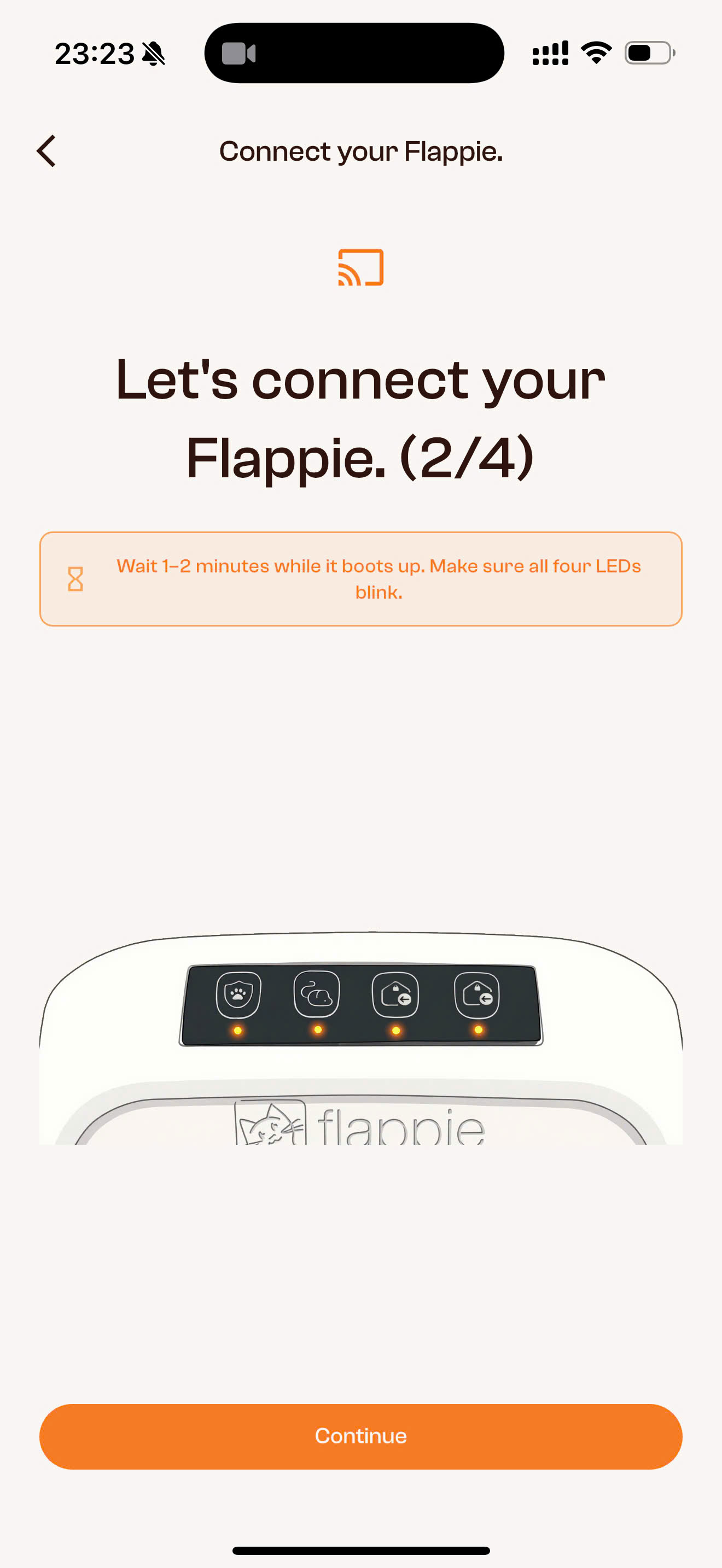
5.2 — Wait for all 4 LEDs to blink
Flappie needs 1–2 minutes to boot up. Wait until all 4 LEDs on top are blinking.
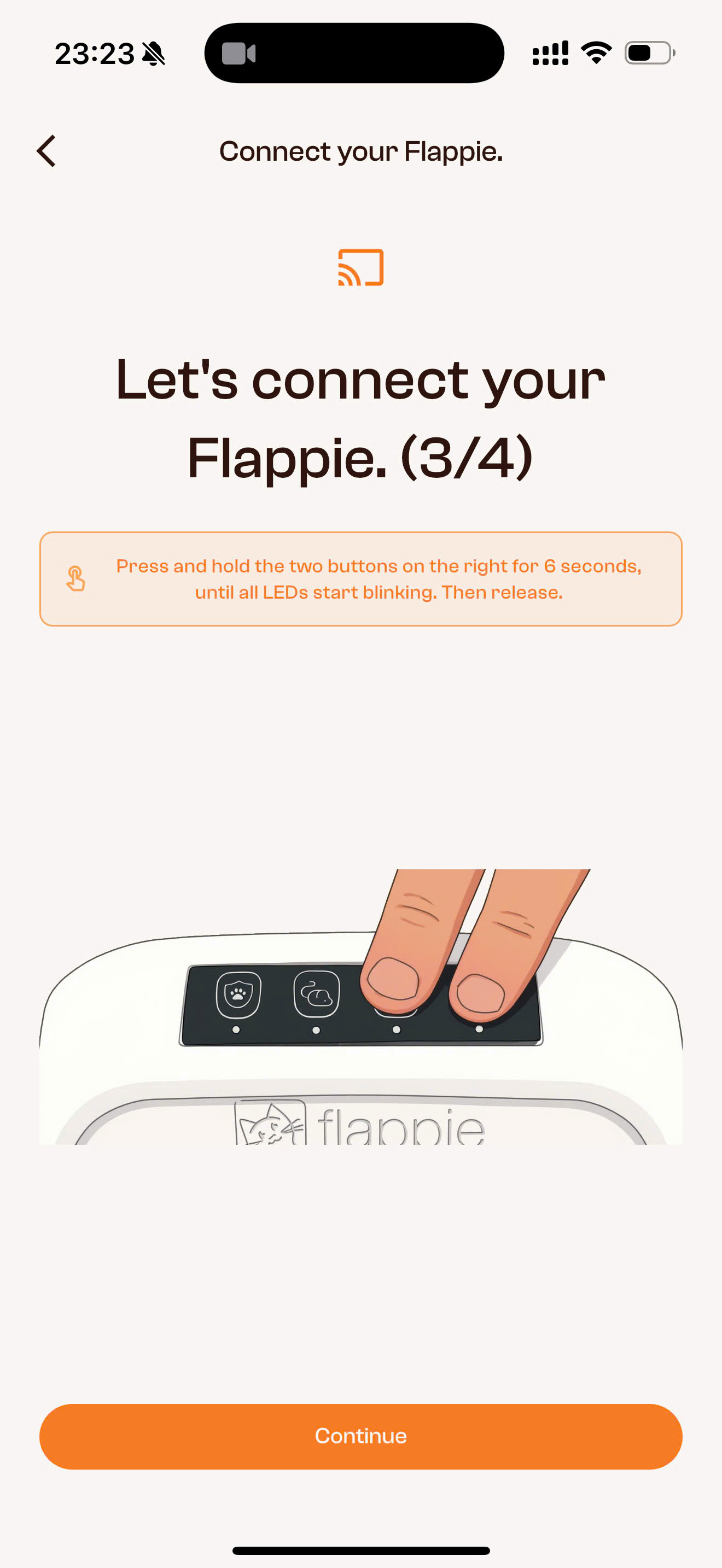
5.3 — Activate pairing mode
Press and hold the two right buttons on top of Flappie for 6 seconds until all LEDs start blinking. Then release.
5.4 — Establish connection
The app shows "Your Flappie is now in pairing mode". Tap "Continue" and wait for the connection to be established.
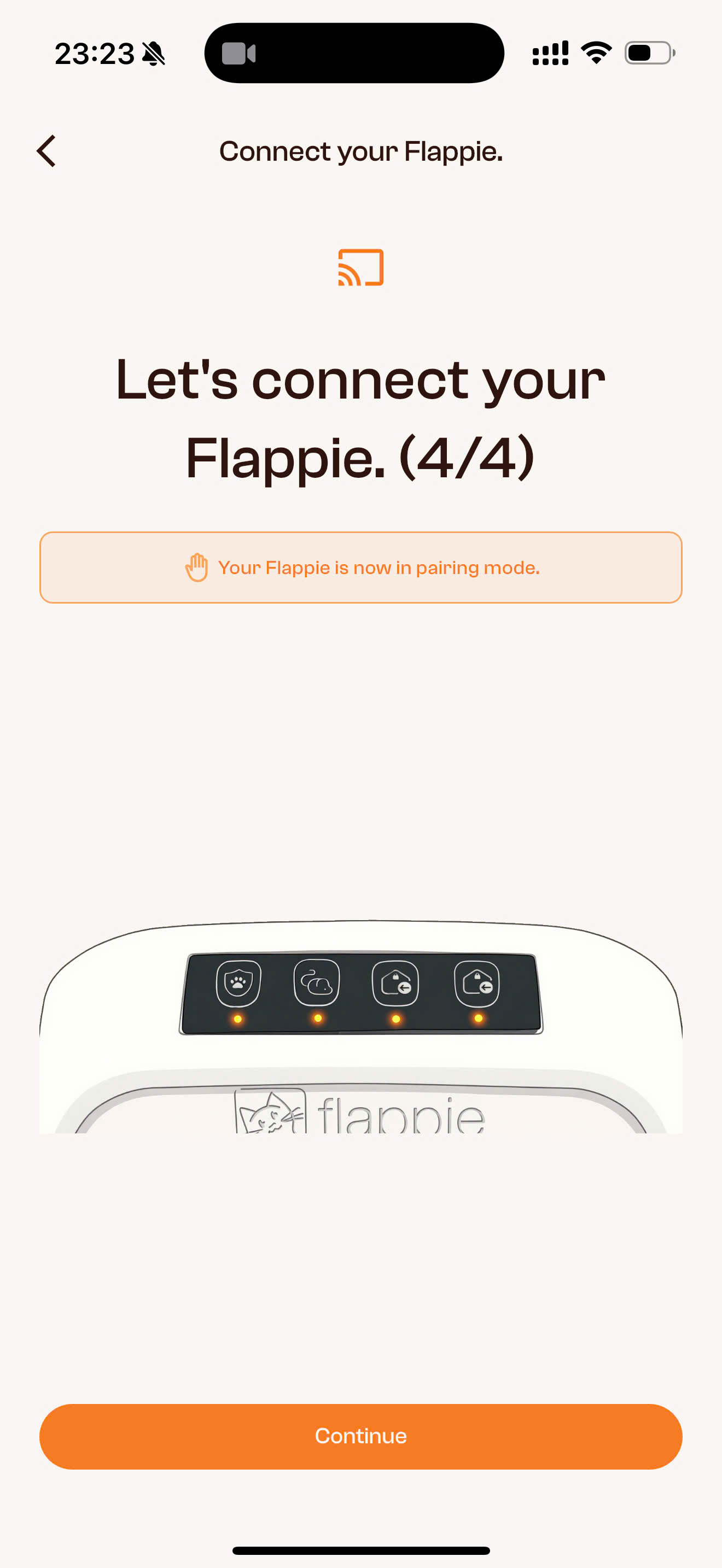
If everything worked, you'll see "Setup Complete!" — your Flappie is connected.
Connection failed?
If the app can't find your Flappie, it will automatically show a help screen:
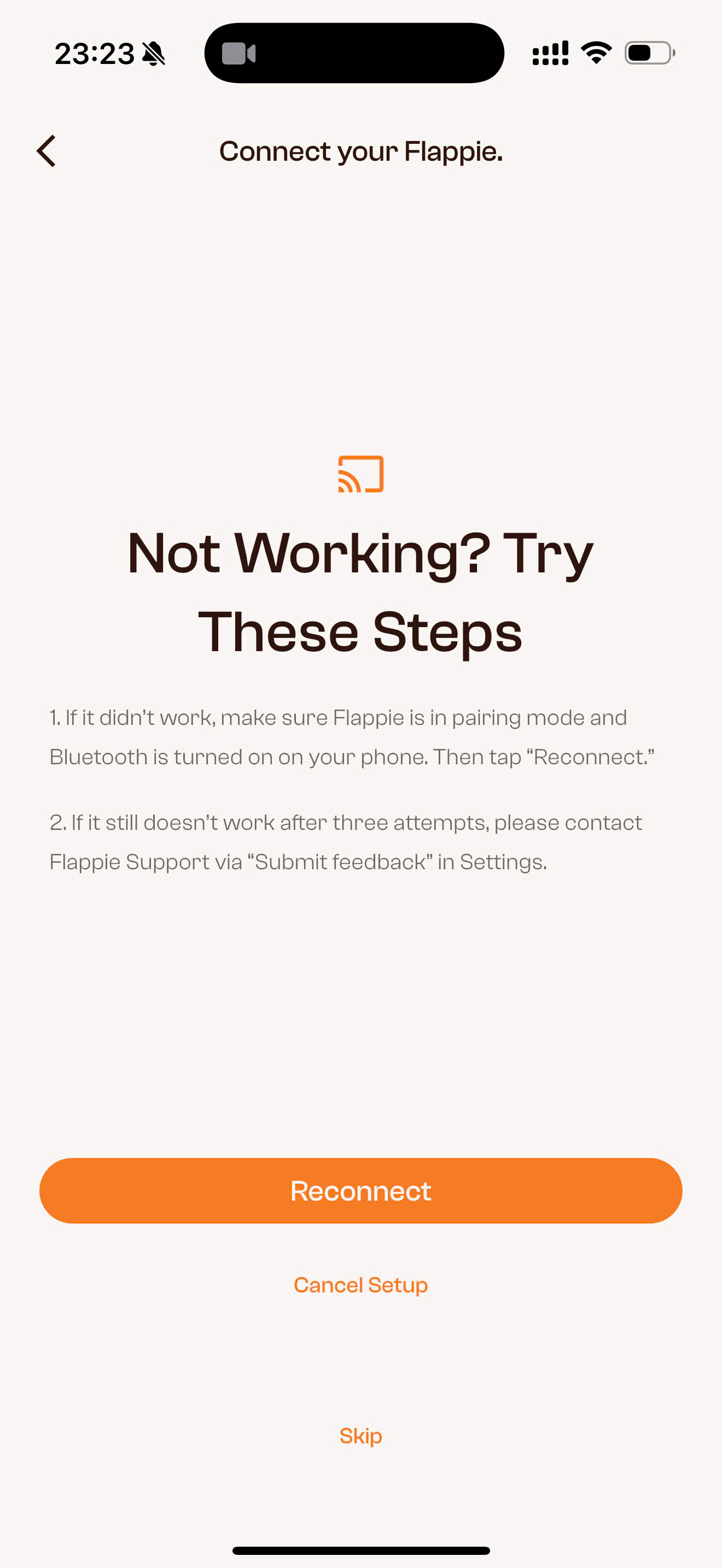
Check the following:
- Is Flappie plugged in and are all 4 LEDs blinking?
- Is Bluetooth enabled on your smartphone?
- Are you close enough to Flappie (within a few metres)?
- Tap "Reconnect" and try again.
If it doesn't work after three attempts, contact us via "Submit feedback" in the app settings or write to [email protected].
What's next?
Your Flappie is now connected and ready to go. Over the next 14 days, the calibration period runs — the AI learns your environment before prey detection is activated.
→ The First 14 Days: What to Expect
Still stuck?
Write to us at [email protected] or use the chat in the bottom right corner — we're happy to help.