%20(1).jpg)
Lock Times & SchedulesUpdated 6 months ago
The Flappie app lets you control exactly when your cat can come in or go out. There are two ways: quick changes directly from the dashboard, or automatic schedules that repeat.
The four modes
Whether you use the quick access or a schedule, you always choose one of four modes:
- Open in both Directions — Your cat can come and go freely. Prey detection stays active.
- Closed in both Directions — The flap is completely locked. Nothing gets in or out.
- Keep Cat inside — Your cat can come in but can't go out. Perfect for nighttime.
- Keep Cat outside — Your cat can go out but can't come back in.
Important: Schedules always apply to all cats at the same time. Individual rules per cat will become possible with Cat ID.
Quick access from the dashboard
For immediate changes, you don't need a schedule. Simply tap Status Flap on the dashboard.
A menu opens with the four modes. Choose the one you want — the change is sent to your Flappie immediately.
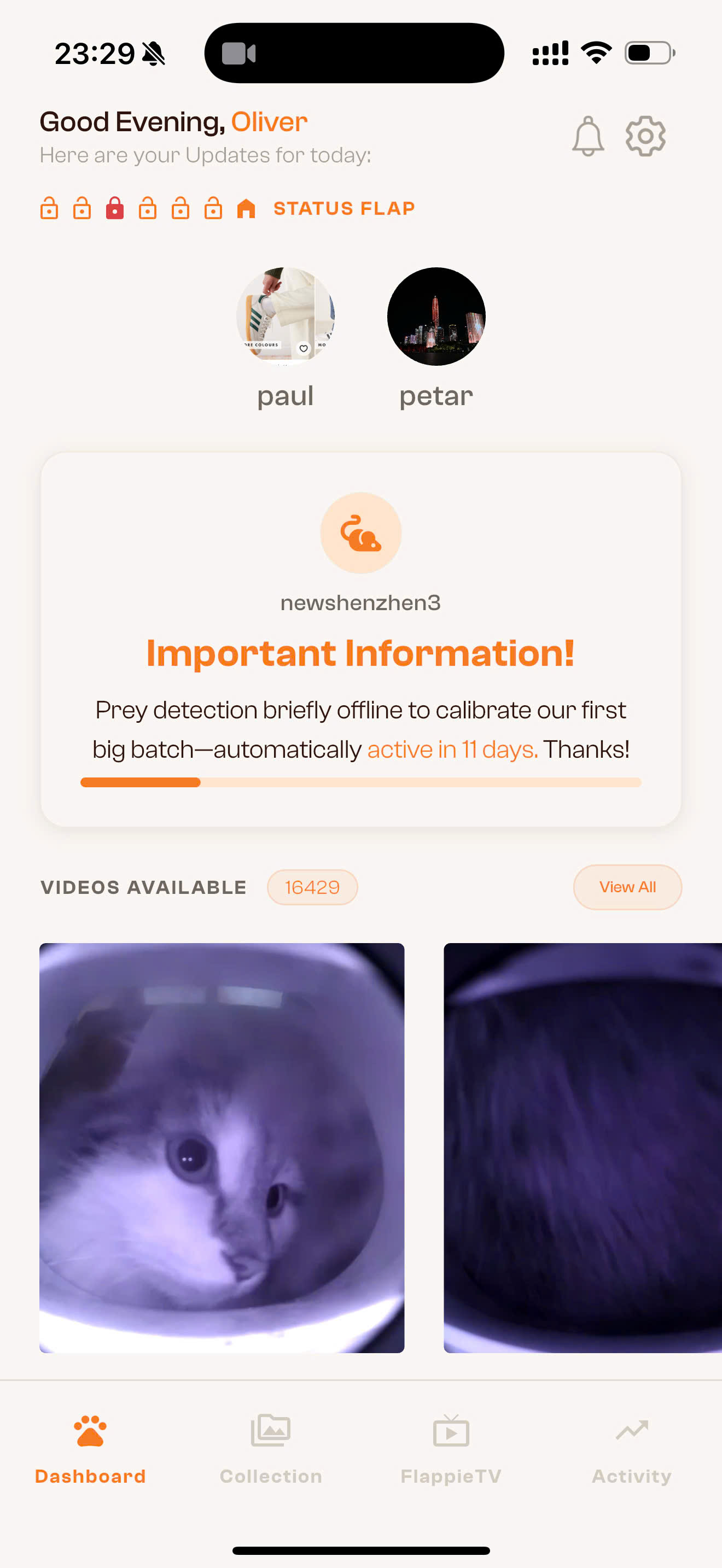
Good to know: If a schedule is currently active and you change the mode via the dashboard, the active schedule is automatically deactivated. You'll see a popup warning you about this — so you never accidentally override a schedule.
Creating a schedule
Schedules are perfect for recurring routines — for example, a night curfew or a weekday rule.
Step 1: Open Lock Times
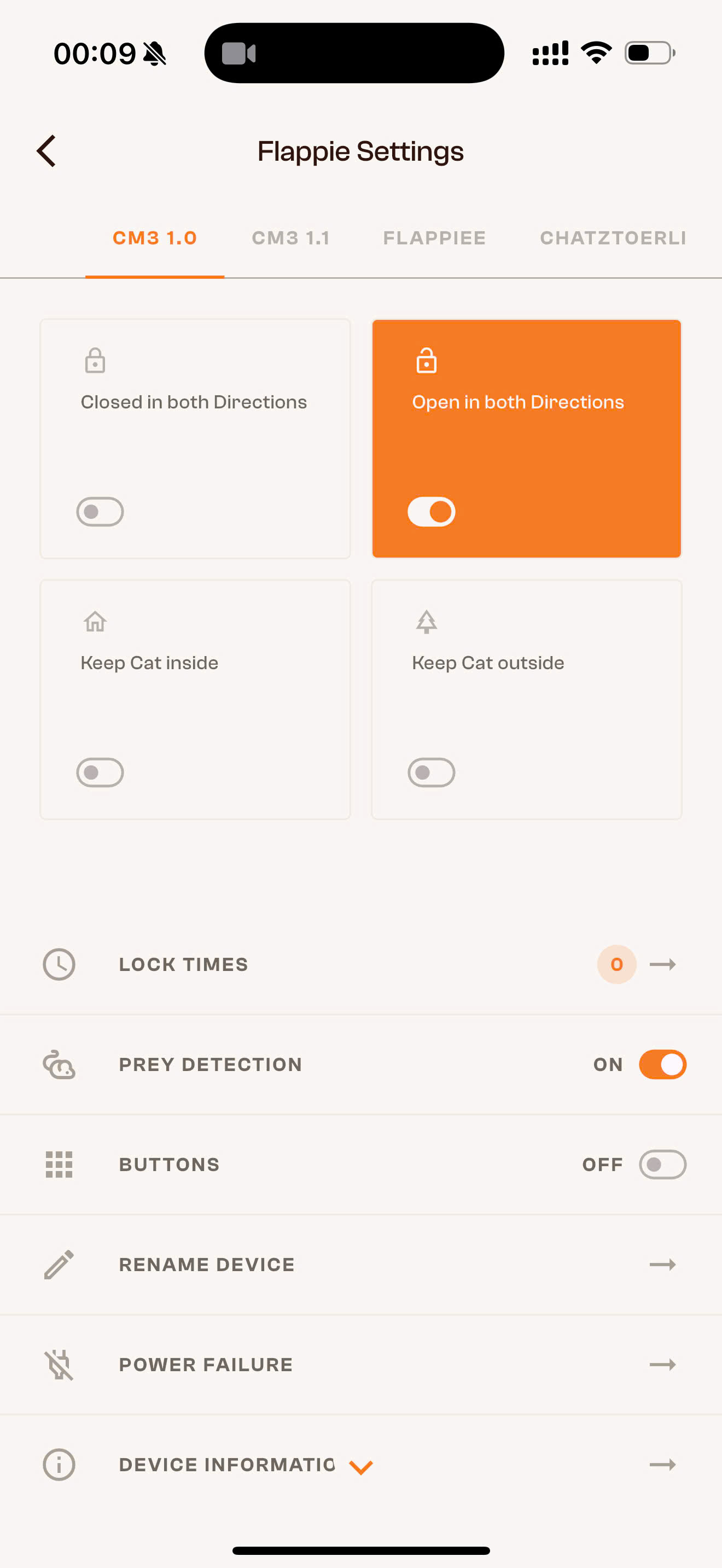
Open the Flappie app and tap the gear icon in the top right to go to Flappie Settings. Then tap Lock Times.
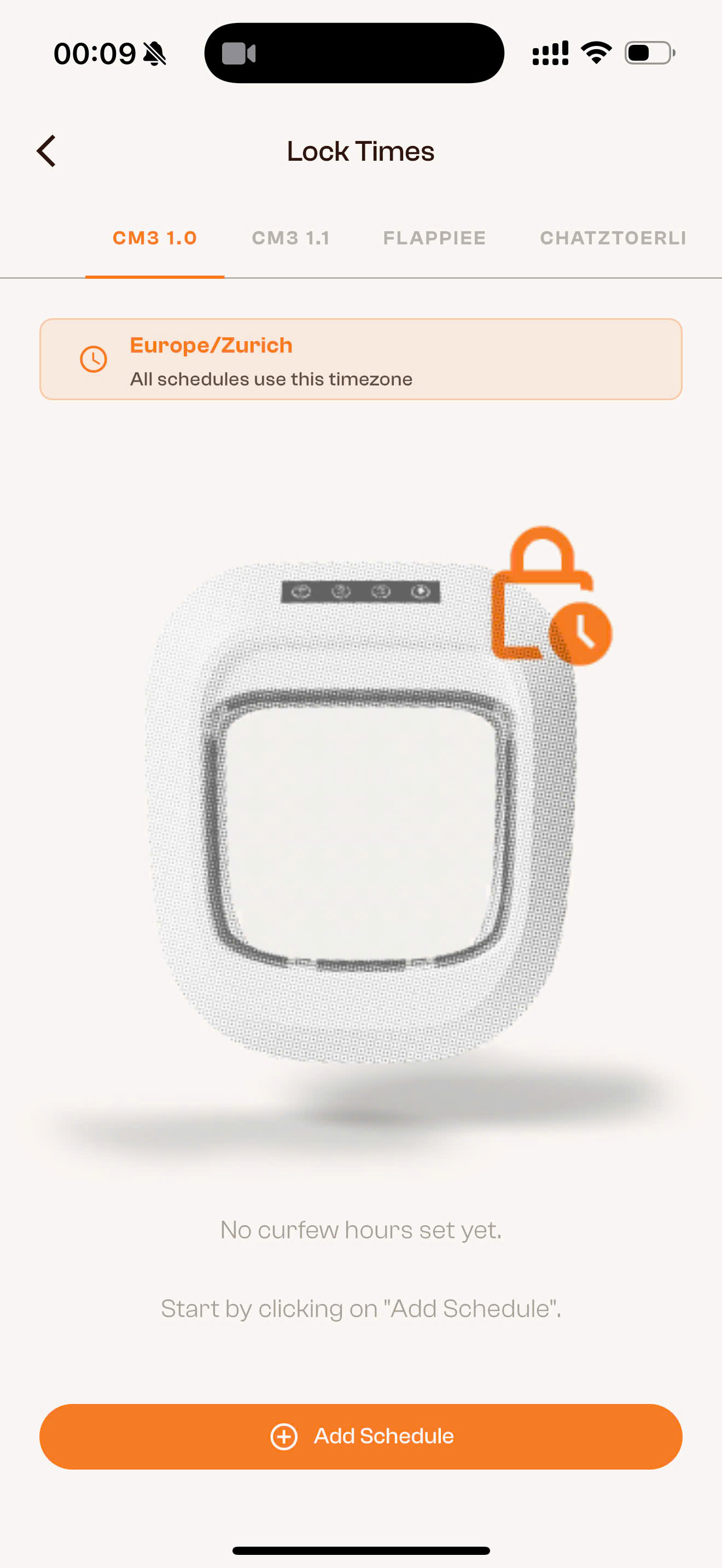
If you don't have a schedule yet, you'll see an empty page with the Add Schedule button.
Step 2: Configure the schedule
Tap Add Schedule. You'll see a form with the following fields:
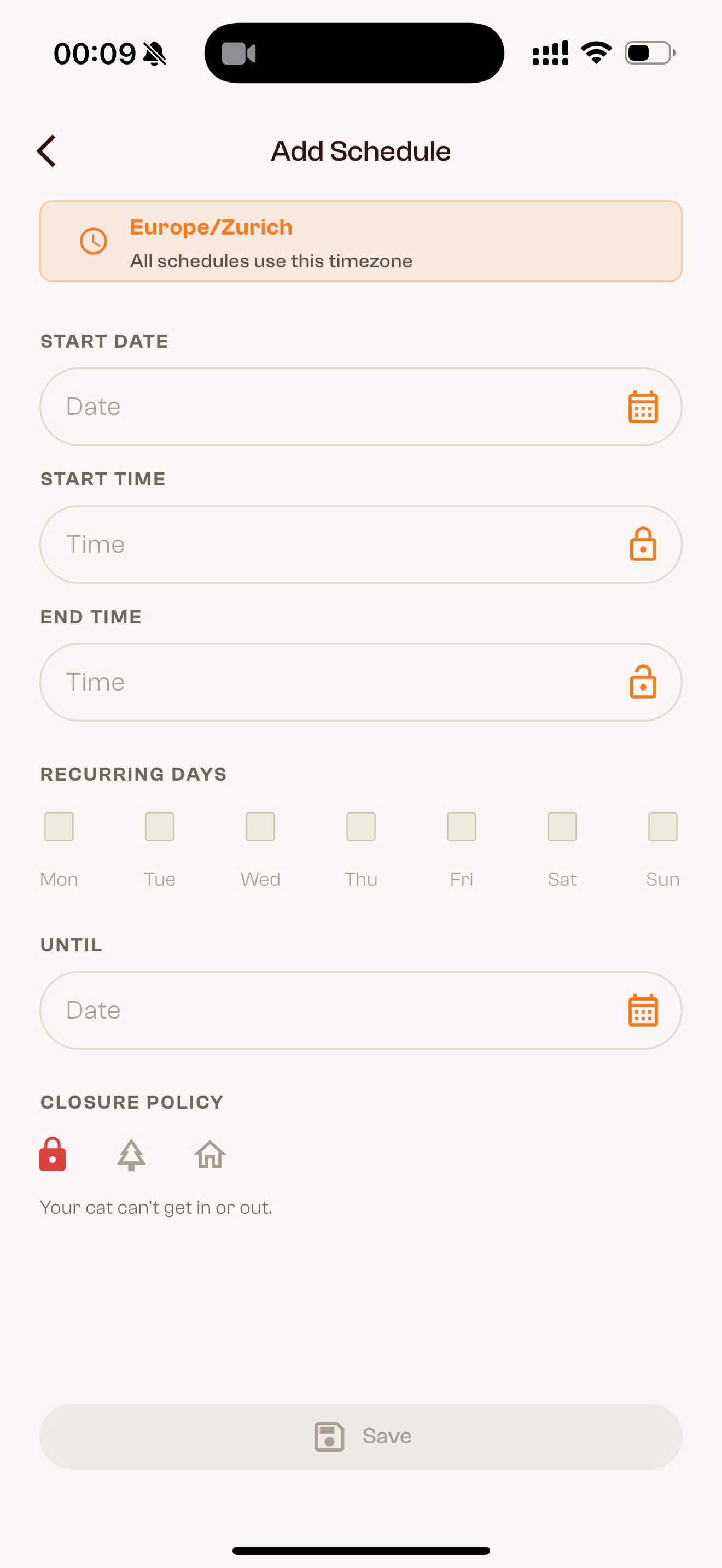 Start Date — When the schedule should begin
- Start Time / End Time — The time window during which the lock is active
- Recurring Days — Which days of the week the schedule repeats
- Until — Optional end date. Leave empty if the schedule should run indefinitely
- Closure Policy— Which mode applies during the lock period. There are three options:
- 🔒 Lock icon = Closed in both Directions (flap completely locked)
- 🌲 Tree icon = Keep Cat outside (cat can go out but not in)
- 🏠 House icon = Keep Cat inside (cat can come in but not out)
Step 3: Save
Fill in the fields and tap Save.
Here's an example: a lock from 3:09 to 7:09 AM, every Monday, Tuesday, Thursday, and Friday, starting February 7, 2026. The closure policy is "Closed in both Directions" — the cat can neither enter nor exit during this time.
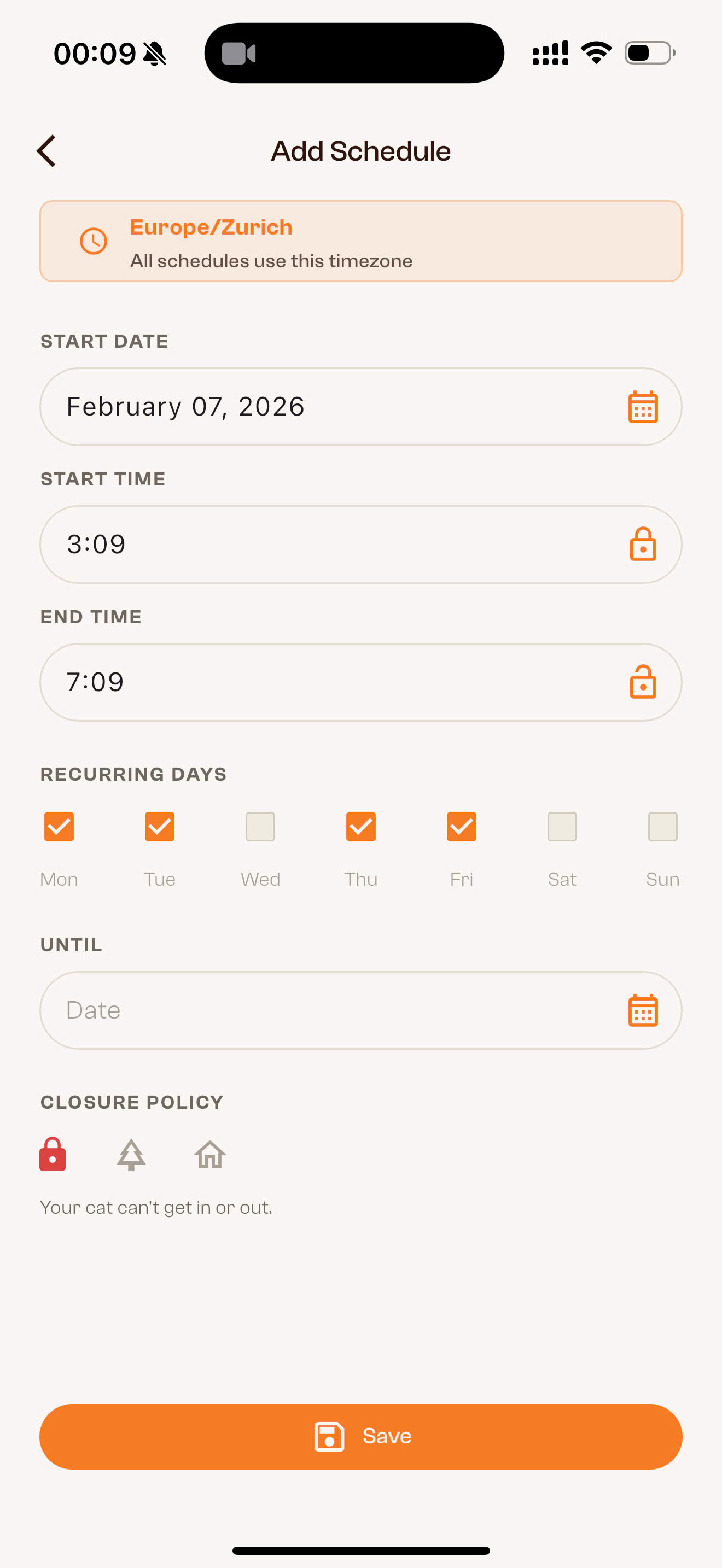
Tap Save to store the schedule.
Step 4: Done
Your schedule now appears as a card under Lock Times. You can enable or disable it at any time using the toggle, without deleting it.
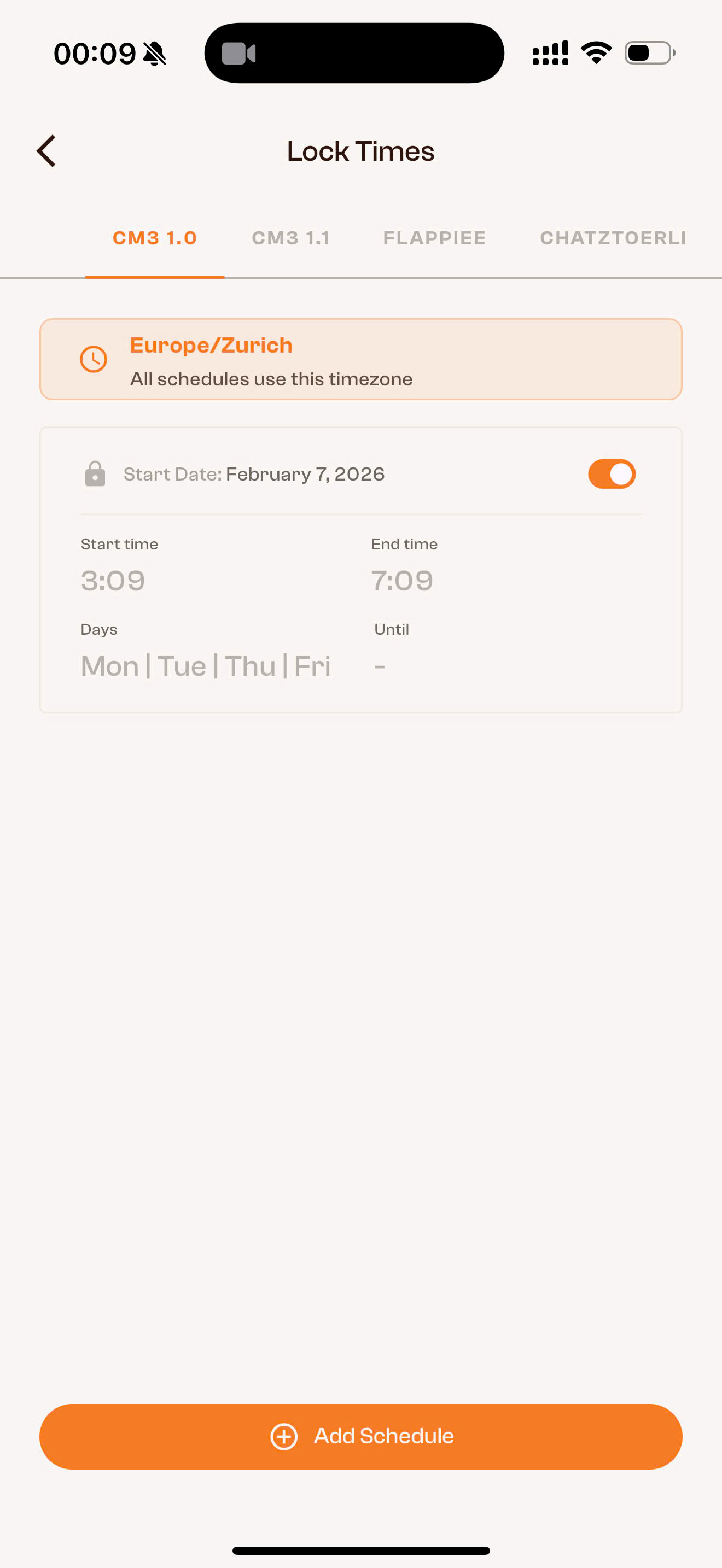
You can create multiple schedules — for example, one for weekdays and a different one for weekends.
Popular use cases
Night curfew — keep cat inside
Start Time: 10:00 PM / End Time: 6:00 AM
Recurring Days: All 7 days
Closure Policy: Keep Cat inside (🏠)
Your cat can still come home in the evening but can't go out again.
Holiday — fully locked
Start Date and Until: Your dates of absence
Closure Policy: Closed in both Directions (🔒)
If someone else is looking after your cat and the flap should stay locked.
Different rules for weekdays and weekends
Create two schedules: one with Recurring Days Mon–Fri and another for Sat–Sun. This way you can have different lock times for work days and weekends.
Time zone
All schedules use the time zone shown at the top of the Lock Times screen (e.g. Europe/Zurich). Make sure it's correct before creating a schedule.
Questions about lock times?
Write to us at [email protected] or use the chat in the bottom right corner.